

Security brings together provider-backed alarms, locks, covers, openings, and cameras. Risky actions require deliberate confirmation.
Review quickview
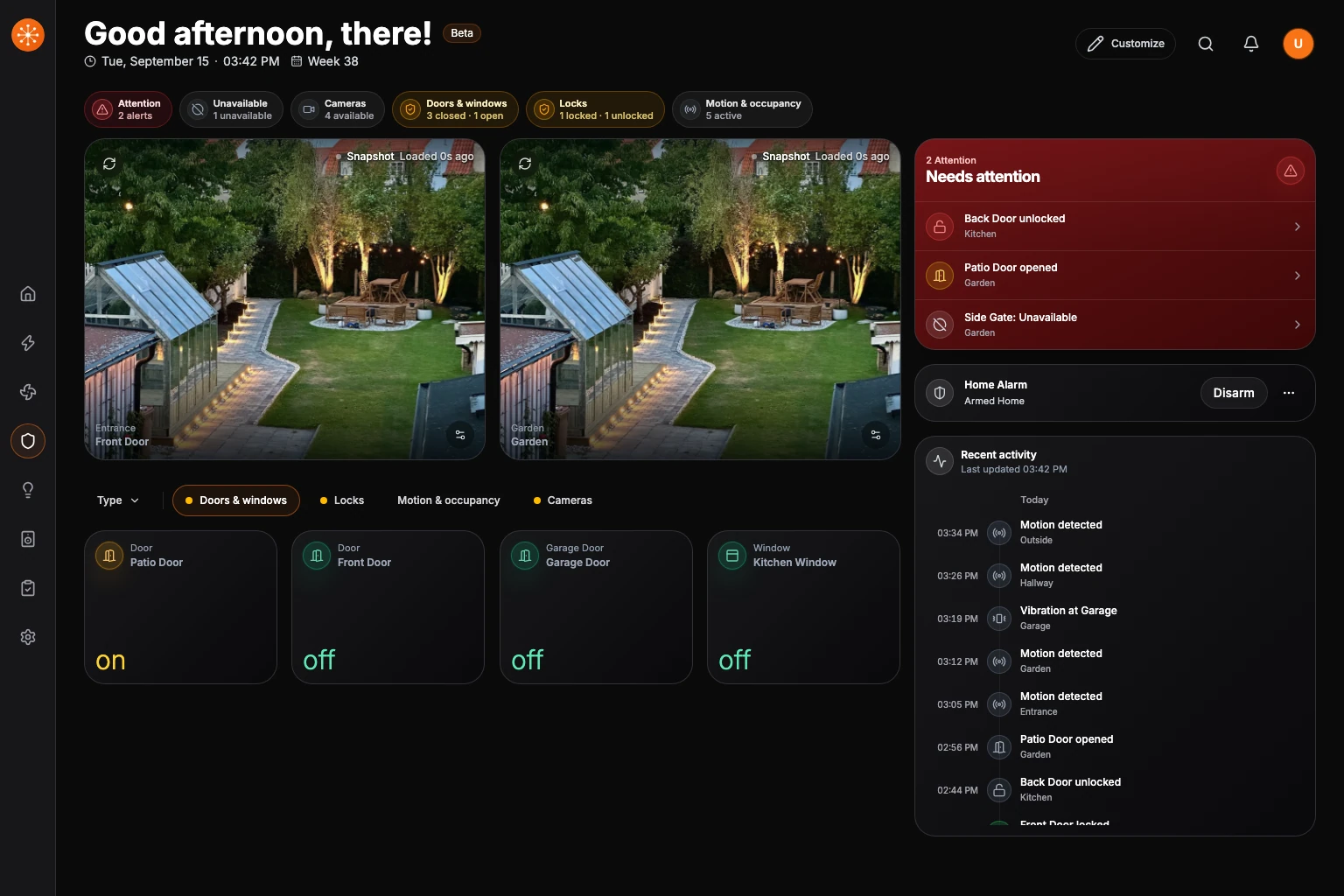
The summary strip prioritizes attention and unavailable devices, then shows camera availability and state summaries for the available device groups. Select a summary to inspect matching devices. The command center keeps the selected camera feeds prominent while Needs attention, alarm controls, and Recent activity stay together beside them on larger screens and stack into the same reading order on phones.
- Select an attention row to jump to that entity’s card. A motion or occupancy sensor linked to a camera opens that camera instead.
- Select a camera activity row to open the matching camera.
- Choose Load older activity when provider history is available and you need earlier events. The feed shows failed refreshes and its last successful update; choose Retry to try again.
- Use the group buttons below quickview to inspect doors and windows, locks, motion and occupancy, cameras, and other available security groups.
Battery readings appear together in Battery Overview, with low batteries first. When a device reports both its charge percentage and a low-battery status, they share one row. Devices that only report battery status show that status instead of a percentage. Grouping by room limits the list to batteries in the selected room.
Arrange quickview
- Choose Customize while Security is open.
- Select a device card’s pin button, or drag the card into Quickview at the top.
- Drag quickview cards to change their order. Use the remove action in the card’s bottom dock, or drag it back to the device list, to remove it from quickview.
- Choose Done to leave edit mode. Changes are saved as you arrange the cards.
Pinning keeps the card in the device list. To restore a hidden device first, use Add entity.
Control a lock or cover
Home Assistant covers with the Garage door, Gate, Door, or Window device type appear in Security. Their reported state determines whether they need attention, including when they do not report an opening percentage. A moving cover needs attention until it reports closed.
For a lock, open the card, confirm the target, then use the supported action. Slide or swipe confirmation can be required for lock state changes.
For a cover, select the card’s settings button to open its controls. Use Open, Stop, or Close when the device supports them. For covers with position control, drag the handle on the card or the larger position control in its dialog, then release to apply the change. The shaded fill shows the closed portion: 72% open leaves 28% covered. Dragging upward opens the cover further. You can also select a percentage preset.
The three-dot menu provides Edit room, Edit card name, and Customize. Choose Customize to set the cover’s device type, such as blind, curtain, or garage door. Garage doors and covers without position data show Open, Closed, Opening, or Closing as their main status. For covers with position data, choose Simple controls to use state-only controls or Position controls to show percentages, handles, and supported position presets. Navet remembers this choice for each cover on this device. Select Back to controls to return, and Done when finished.
Unknown or unavailable covers display Unavailable. Their movement controls stay disabled until the provider reports an available state.
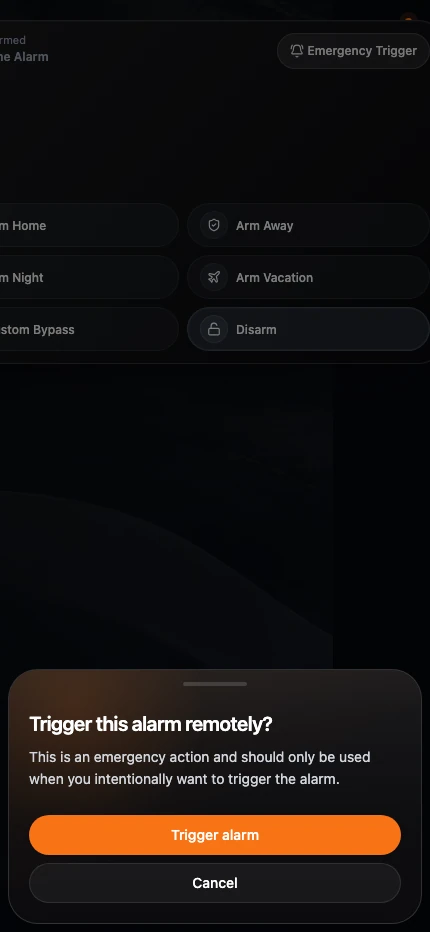
Arm or disarm an alarm
- Select the alarm panel.
- Choose the supported arm or disarm mode.
- Enter a code when required.
- Confirm the action.
The emergency trigger requires a separate confirmation.
View cameras
Select a quickview camera to open its live viewer. Live indicates verified playback. Snapshot load age describes when Navet received the image, rather than when the camera captured it. Kiosk mode can hide configuration controls while leaving the camera surface visible.
When a camera exposes linked lights, desktop uses a compact popover and phones use a bottom sheet for power and brightness so the controls remain touch-friendly.
If video does not play, use Camera does not play live video.
Safety note
Navet sends commands through the owning provider. Verify physical state when safety matters, especially after a network or provider error.