


The Add Card library combines provider-backed entities with Navet-owned widgets. It excludes cards already present in the target area where duplicates would not be useful.
Watch the Add Card demonstration on YouTube, or follow the full dashboard tutorial.
Open Add Card
- Open the target dashboard and room.
- Enter edit mode.
- Choose Add Card.
Home has its own layout. After choosing Start with all entities during onboarding, room dashboards can contain automatically generated cards while Home is still empty. Add the cards you want to Home through this library.
Find what you need
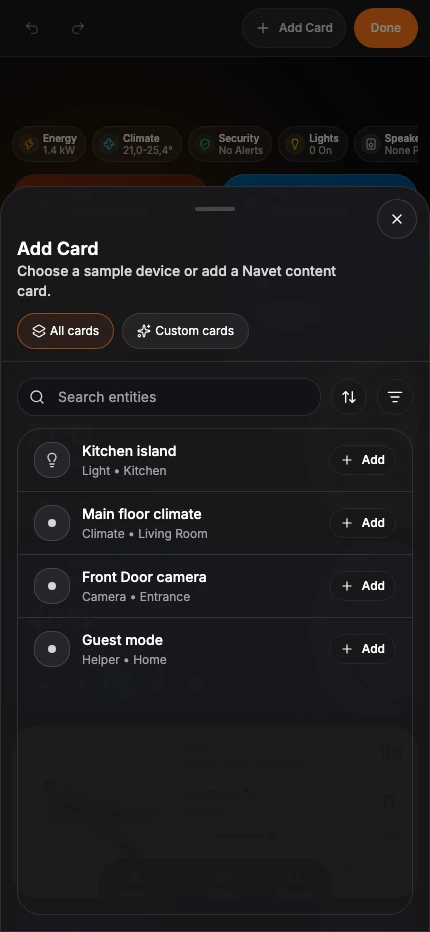
- Use All cards for devices and other normalized provider entities.
- Use Custom cards for Navet content such as notes, RSS, photos, actions, maps, battery summaries, UPS status, and energy summaries.
- Search by the visible device or room name.
- Use an explicit native identifier when you need to find one exact provider entity.
- In Custom cards, search by card name, sort the results, or filter by supported card size.
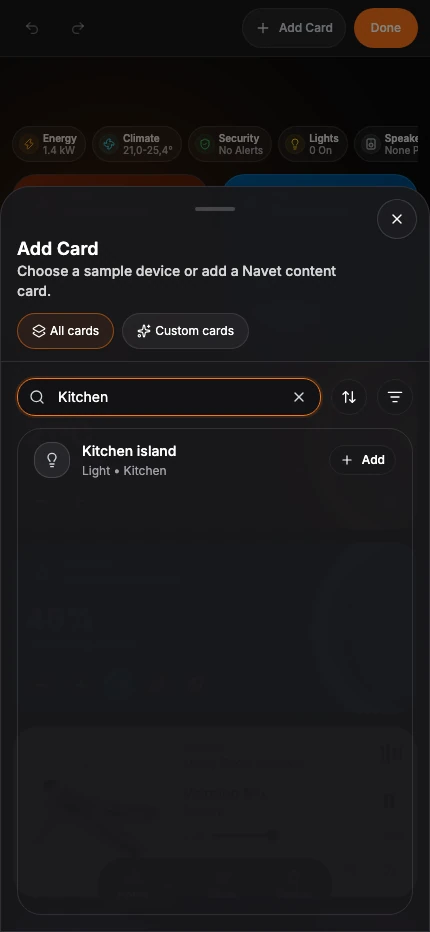
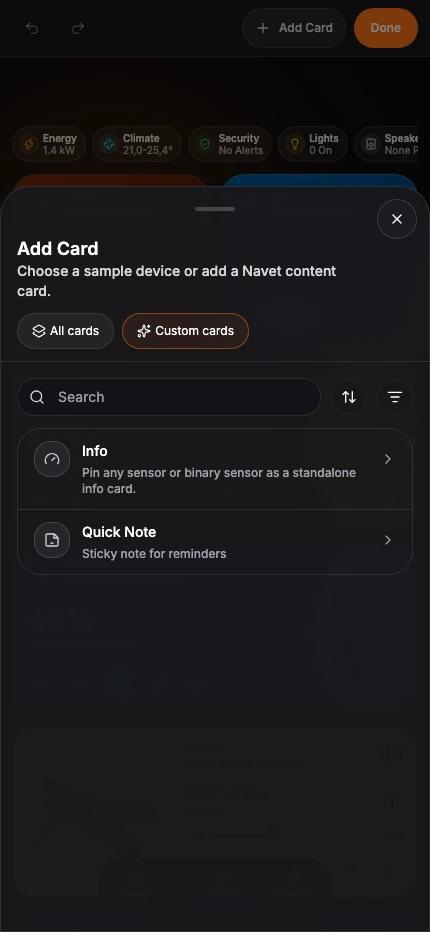
On phones, Add Card opens as a tall sheet with its own close action. On larger screens, the same library keeps the navigation and results visible side by side.
Generic entity cards are available when Navet recognizes an entity but has no richer dedicated card for it.
Where a dashboard offers Add entity, it uses the same searchable library, room filter, sorting, and device-type navigation as Home. The list contains entities eligible for that dashboard; adding an entity keeps the dashboard’s existing behavior. Custom-card authoring remains available through Add Card.
Configure the card
Depending on the card type, choose:
- The room or Home overview where it belongs.
- A supported size.
- A display name or icon.
- Widget-specific content, source, or action.
Choose the add or save action. Navet places the card in the target area.
Cover cards default to Small; climate and speaker cards default to Medium. In edit mode, use the card’s size control to choose Small, Medium, or Large. Navet remembers the size you choose.
If the entity is not listed
- Clear the search.
- Confirm that its provider is connected and selected.
- Check Settings → Dashboard → Entity visibility.
- Review Rooms, devices, or entities are missing.