


Navet combines supported provider notifications into an attention surface. Available actions depend on the provider service that produced the item.
Review an item
- Open the notification indicator to show the notification panel.
- Use the tabs at the top: choose Notifications for household messages and issues, or Updates for available software updates. The counts show how many items are in each view.
- Update notes appear beneath the version. Choose Read more for long release notes, or Details to expand a long notification message.
- Use the checkmark (Mark as read), View changes, or another provided action on the item.
The list scrolls while the view controls and bulk actions remain available. Mark all read applies to both views.
Hide or clear items
- Use the dismiss control (×) on a row to hide that update or delete that notification. Deleting also dismisses the notification at the provider when supported. Other items stay visible.
- Clear all removes current items from both views after confirmation.
Clearing in Navet does not necessarily erase an independent alert history maintained by the provider.
Use update or restart actions
When a notification’s provider supports administration actions, an update or restart action can appear on the relevant notification. Review the target and provider before confirming.
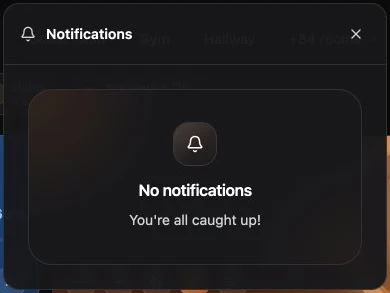
If no notifications appear
An empty state can mean that there is nothing requiring attention or that the connected provider does not supply notification services. Check the capability matrix.