


Home edit mode changes the active dashboard layout. It does not reconfigure the underlying device unless a separate dialog explicitly describes a provider change.
Watch the dashboard tutorial
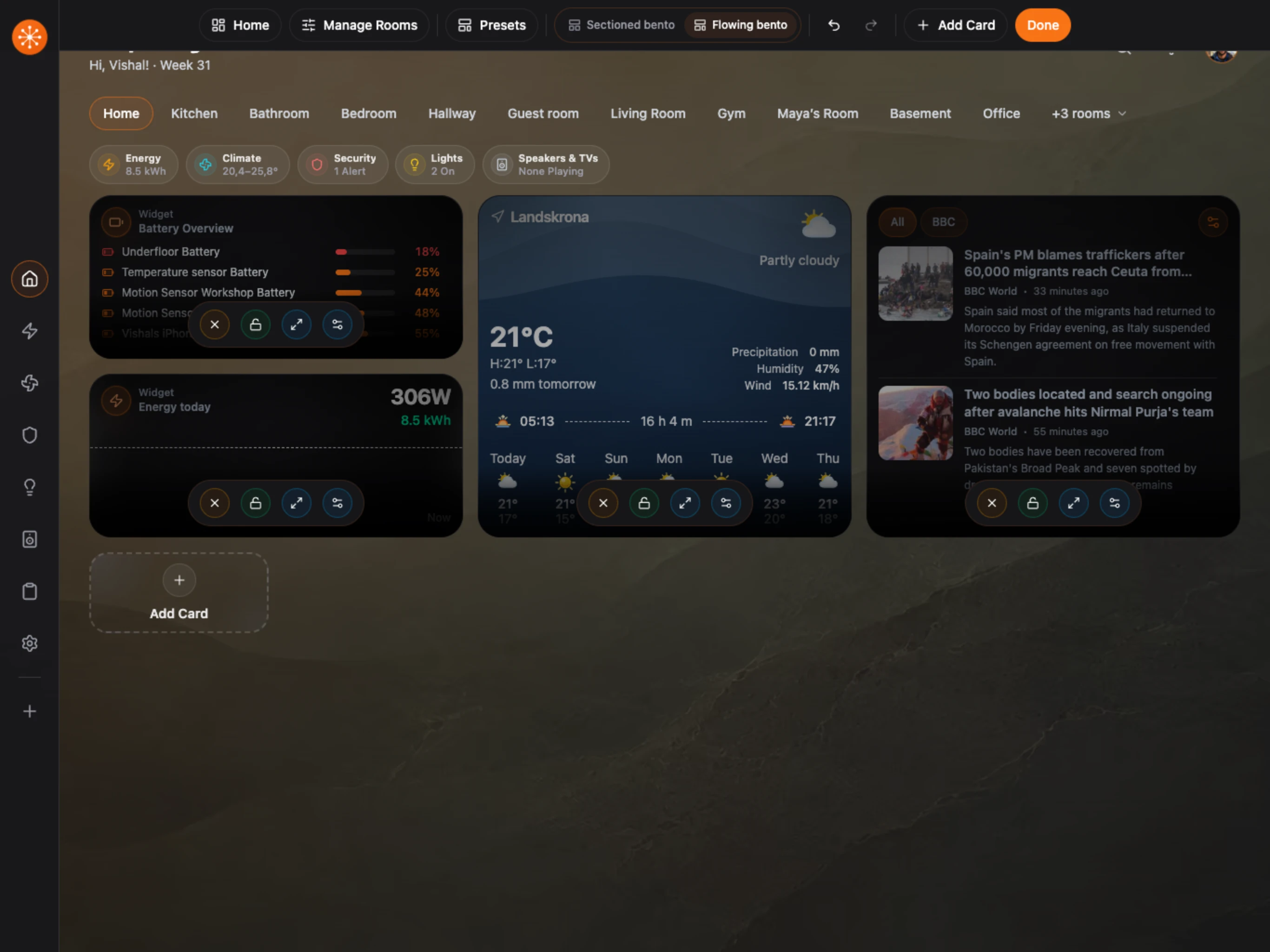
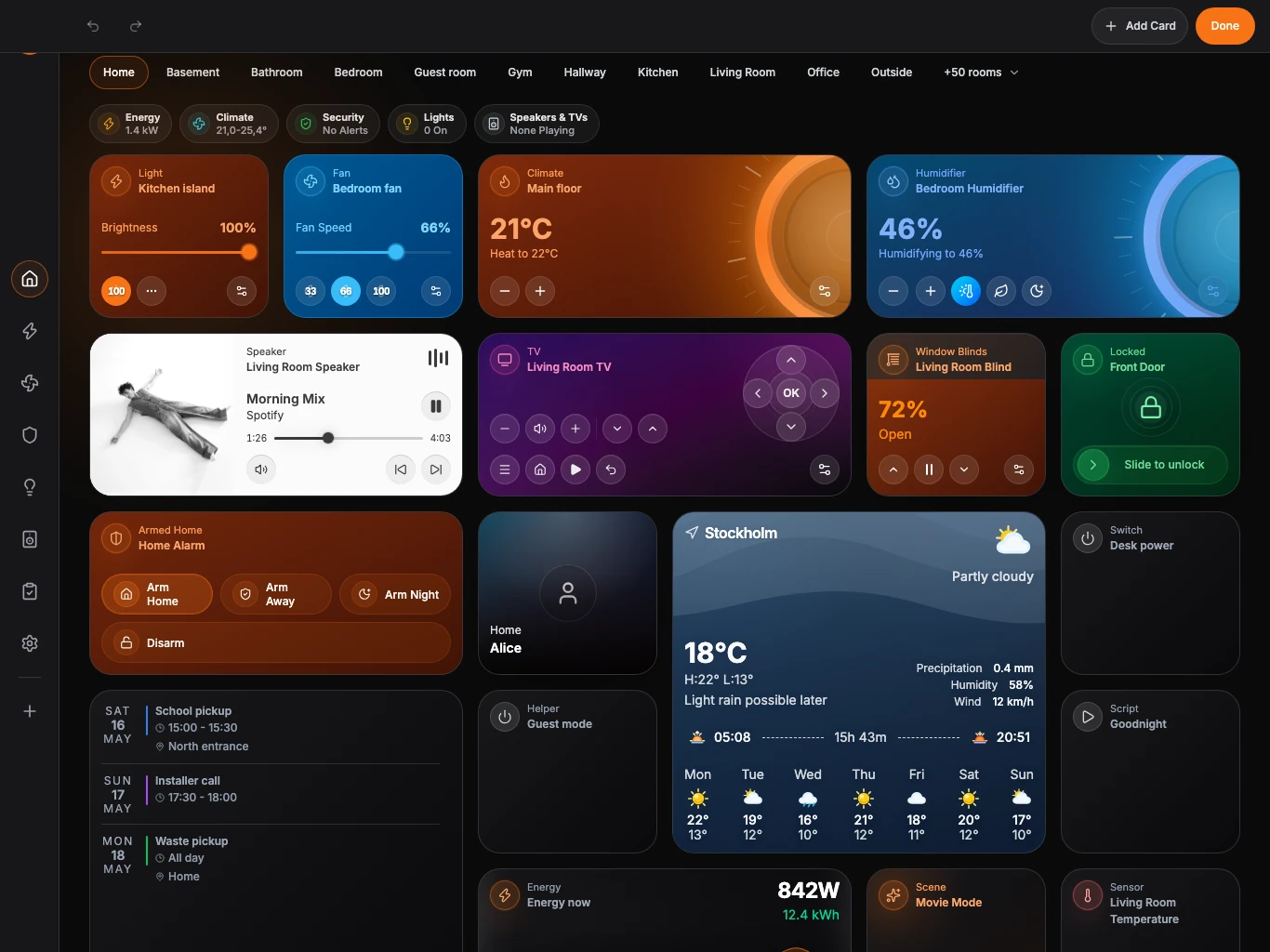
Build on the included Home dashboard: add cards, choose sizes, arrange sections with mouse drag and drop, and check the result on a phone. The recording uses Home Assistant as its example provider; the dashboard workflow itself is provider-neutral.
Watch the dashboard tutorial on YouTube. New to Navet? Start with the setup guide.
Enter edit mode
- Open the Home dashboard you want to change.
- Choose Customize or Edit dashboard.
- Confirm that the editing command bar appears.
On screens 1100px wide or narrower, choose More actions for room management, presets, layout choices, and section controls. Add Card, Undo, Redo, and Done remain on the bar.
Arrange cards
While editing, you can:
- Drag a card to another position.
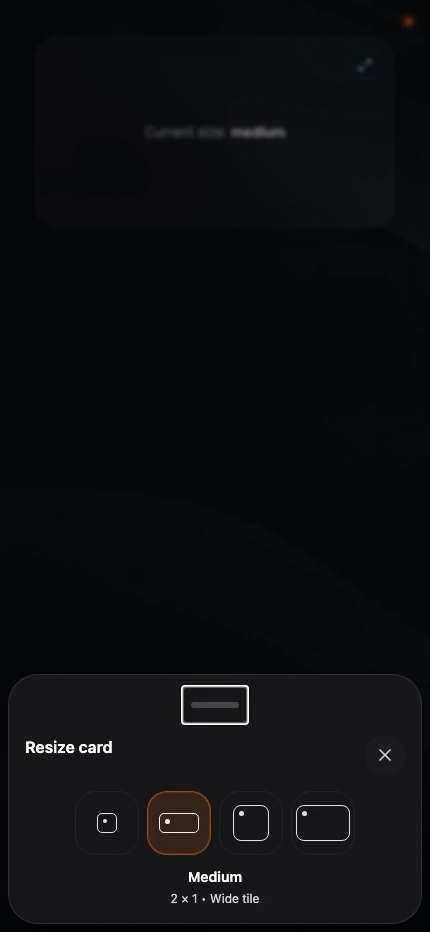
- Change its supported size.
- Move it into another section or column.
- Optionally lock a card to disable its input outside edit mode, which can be useful for information cards. This does not lock its layout position.
- Hide an automatically added entity.
- Delete a Navet widget or manually added card.
Available sizes depend on the card type and screen width.
Use undo and redo
Choose Undo to reverse the latest layout change and Redo to reapply it. These controls are most useful before you leave edit mode.
Finish
Choose Done. Navet saves the active Home layout to the dashboard profile. Enter content such as a Quick Note after leaving edit mode.
If another registered device is editing the shared profile at the same time, Navet may ask which version to keep. See Resolve a synchronization conflict.
Restore a hidden card
Open Settings → Dashboard → Entity visibility and use the restore action. See Restore removed entities.
Before making a large change
Use Back up and restore configuration before replacing a large layout or experimenting with several packs.