


Each registered browser or display can open a different Home dashboard while sharing the same dashboard collection.
Identify a standalone screen
On a primary standalone sign-in, open Settings → System → Authorized devices, open the screen’s menu, and choose Rename device. Use a recognizable name such as Kitchen iPad or Hallway Pi.
Clear names make access management easier to understand.
Assign from dashboard management
- Open Settings → Dashboard → Home dashboards.
- Open the action menu beside a dashboard.
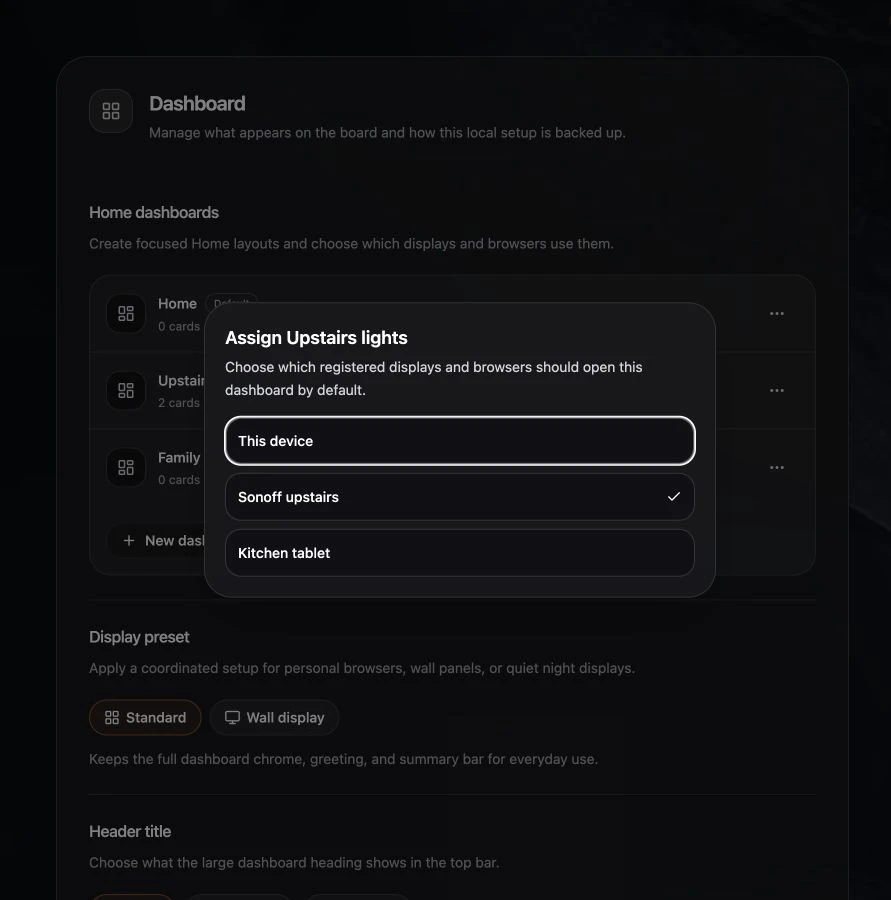
- Choose Assign displays.
- Select the displays and browsers that should open it.
- Close the dialog when the correct devices are selected. Changes apply as you select or clear a device.
You can also create a dashboard and choose This display in the creation flow.
Default versus assigned
- The default dashboard opens when a device has no explicit assignment.
- An assigned dashboard takes precedence for that device.
- Removing an assignment returns the device to the default.
- Deleting an assigned dashboard safely returns its devices to the default.
Expected result
Reload Navet on the assigned display. It should open the chosen Home dashboard. Other sections and provider connections remain available.
If a device is missing
Open Navet on that browser and allow its profile to synchronize. Then reopen Assign displays. Local-only or offline installations may not provide shared device registration.