


Notes, photo frames, and RSS feeds are Navet widgets. They are saved with the dashboard profile and included in configuration export.
Add a note
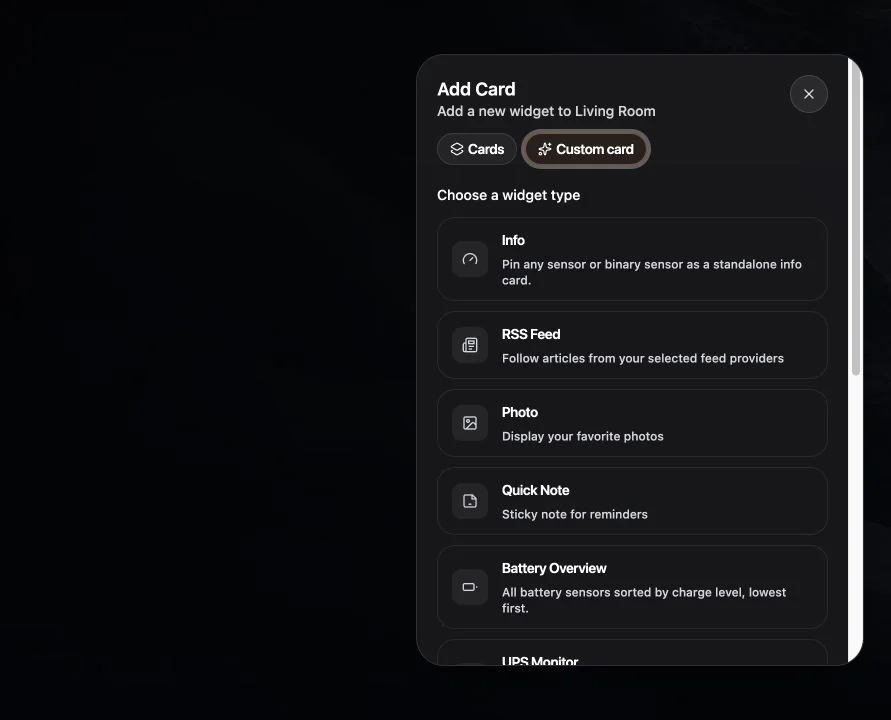
- Enter Home edit mode and choose Add Card → Custom cards.
- Choose Quick Note.
- Enter a title and concise household text.
- Choose a supported size and placement.
- Save.
Add a photo frame
Choose Photo, then select or enter the available image sources. Use images you are allowed to display and that the browser can reach.
Open the photo card’s settings to manage its sources and shuffle setting. Use More actions to Edit room or Customize its appearance. Select Back to controls to return to sources, and Done when finished.
Add an RSS feed
- Choose RSS Feed.
- Enter the feed address.
- Choose how many items to show where available.
- Save and wait for the feed to load.
In the RSS card’s settings, open More actions and choose Add feed to add a feed or adjust the article count. Edit room and Customize are available in the same menu. Select Back to controls to return to your feeds. A card with no saved feeds opens directly in the feed form.
Live feeds require a public HTTPS address and a signed-in Navet session. The Home Assistant add-on uses your authenticated Ingress session. If feed loading stops after signing out, reconnect your provider or reopen Navet through Home Assistant.
If an external source fails
- For a photo, use an
httporhttpsaddress reachable from the browser. - For an RSS feed, use a public HTTPS address reachable from the Navet installation. Local-network feed addresses are unsupported, including public hostnames that resolve to private addresses.
- Authenticated or expiring image links may not be suitable for a persistent photo frame.
- A feed can reject server requests or return invalid RSS.