


Household chores keeps recurring home work in the same calm, shared interface as the rest of Navet. The Today view answers four questions first: what needs doing, who should do it, when it is due, and whether it is finished.
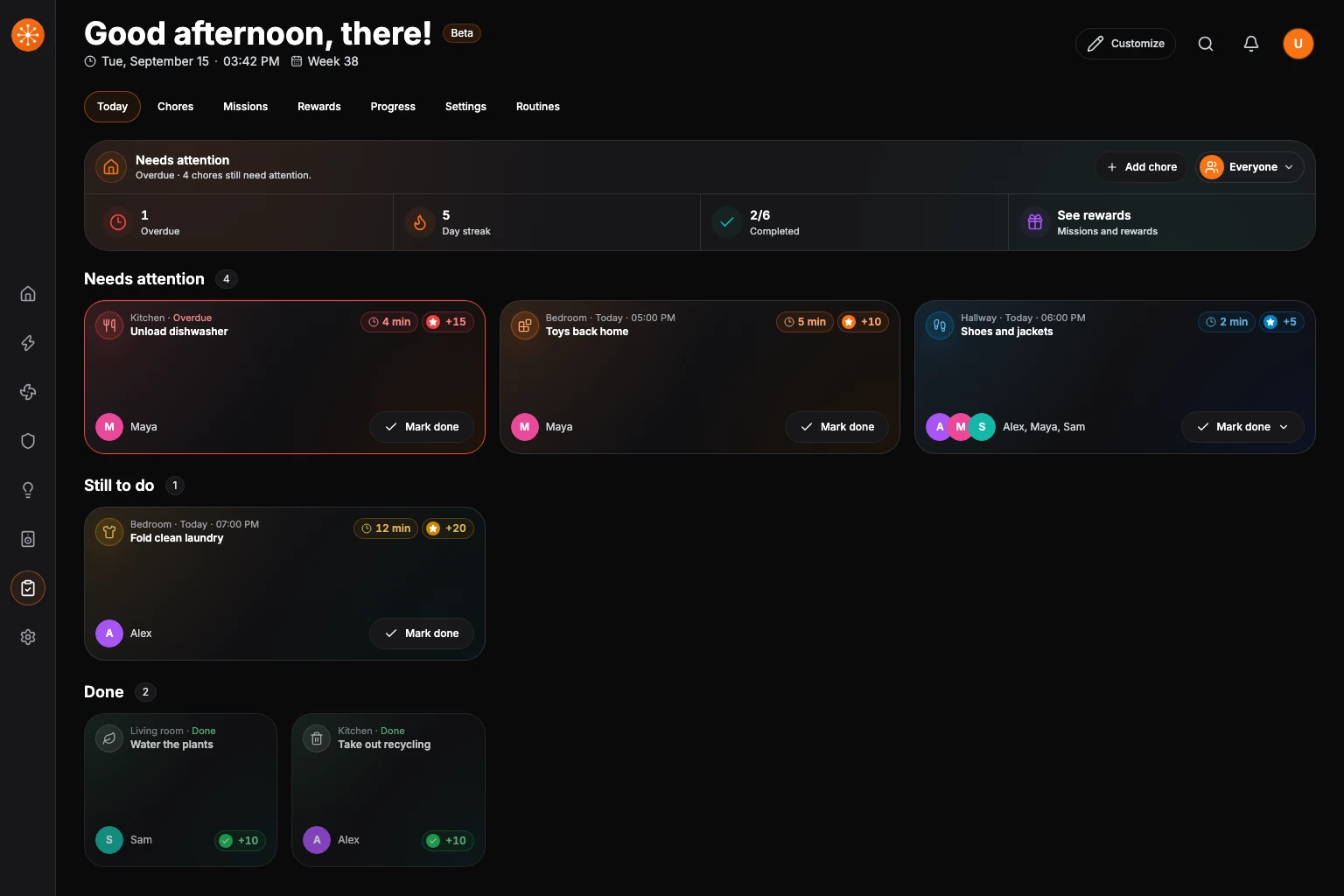
Chores belong to your Navet installation, not the connected smart-home provider. Navet stores people, assignments, schedules, and history in a shared household workspace. Changing a provider connection does not create a new household, and separate Navet installations keep separate data.
Where chores are available
Chores require shared storage supplied by the Navet runtime. Standalone Docker supplies this storage for supported provider connections. In Home Assistant, it is supplied by the Navet add-on or the Navet custom integration used by the custom panel.
Provider capabilities still determine whether optional reminders, routine actions, or projected entities are available. See the integration reference for provider support.
The Household workspace
- Today puts overdue and due work before later chores. Chores today shows earned points, streak, and completion. With a motivation style enabled and at least one mission or enabled reward goal, it also offers See rewards.
- Chores is the searchable library for creating, editing, pausing, duplicating, and archiving recurring work.
- Missions and Rewards appear when a motivation style is enabled and manage optional shared goals without changing the underlying chore workflow. Their supporting cards stay out of Today until See rewards is opened.
- Progress shows contributions and a weekly review.
- Settings manages people, motivation style, backups, restore, and recovery.
- Routines keeps provider automations, scenes, and scripts available beside native chores.
Chores are enabled by default. Settings → Dashboard → Household chores can hide or restore the feature, its Home summary, and room chore surfaces without deleting chore definitions or history.
Room dashboards show a Chores summary pill in a single scrollable row. Choose the Chores pill on Home or in a room to open the Household dashboard and complete chores. The pill remains available with the dashboard summary hidden and keeps the same row height as chores are assigned or completed. Device cards retain their chosen order.
Reading a chore card
The card header keeps the room and timing state above the chore title. Time and points sit together at the top right; optional instructions use the middle; the assignee and the smaller secondary Mark done action stay in the footer. Overdue work uses a red border and status treatment. Completed work remains visible in a smaller card with a green earned-points badge and no time tag.
Each active chore has a consistent automatic colour. Choose Edit → Card color to override it. Completed and overdue state colours always take priority over that override.
People and shared screens
A person in Household is a lightweight workflow profile. Profiles make assignment, completion, approval, reminders, and activity understandable, but selecting a person from Using this screen is not an account sign-in.
Every household keeps at least one manager. Managers can change people and chore definitions, approve work, manage data, and optionally protect those changes with a management PIN. Ordinary completion actions remain available on a shared screen after a PIN is configured.
Assignment and schedules
A chore can belong to one person, be open to anyone, create one occurrence for everyone, or rotate between selected people. A person’s chore can name a standby who covers scheduled work while the primary person is away. Rotation can follow a fixed order or choose the person with the fewest assigned or completed turns. Schedules support one-time, daily, weekly, bi-weekly, tri-weekly, monthly, hourly-interval, and after-completion recurrence. Calendar schedules and completion-date repeats keep the chosen local time; hourly intervals count elapsed hours through daylight-saving changes. For after-completion schedules, marking a chore done sets its next date from the day it was completed. A 14-day interval completed on 4 October is next due on 18 October, even when the chore was completed early. Each person can have a later due date for their turn.
Optional approval separates “marked done” from final completion. Missed-work rules can skip an occurrence, carry it forward, or leave it visible for review. Pausing a chore stops new occurrences without deleting completed history.
A claim can open only near the scheduled start, wait for an earlier turn’s approval, and stay with the claimant when work is sent back. A paused person can have a return date. Work scheduled during their absence stays out of overdue and reminder processing. In Settings → People, managers can review unfinished due dates from that absence and move selected work to consecutive days after the return. Claimed work stays available for review.
Motivation is optional
Core chores work with motivation turned off. Light points, Family goals, and Child-friendly adventure add progressively more feedback while keeping assignments and completion history unchanged. Missions and rewards are supporting surfaces, not prerequisites for using Today. Choose Household → Settings → Motivation style, then Light points, Family goals, or Child-friendly adventure to show Missions and Rewards. Off hides those surfaces while retaining their saved goals and household history.
Progress cards open an individual points view with the person’s current balance and point history. Balances may be negative when points have been reversed or removed. Household managers can add or remove points with an optional note after unlocking management; every adjustment remains in the person’s immutable history.
In Progress, managers can add recurring badges for the household or a personal achievement for one person. A target can count selected chore completions, all completions, points earned, days with completed work, or a streak of completed due days. Targets can run once, weekly, or monthly and may award points. Awards appear beside each person’s progress and remain in point history.
In Rewards, a person can request an enabled reward once they have enough points. A request leaves the balance unchanged. A household manager reviews requests there: Approve spends the points, Decline keeps the balance, Mark fulfilled records delivery, and Refund points returns the approved cost. Each request remains visible with its status, including after the reward goal is edited or removed.
Data, history, and recovery
Chore changes are shared across authenticated Navet screens connected to the same installation. Revision checks prevent one screen from silently overwriting a newer household change. Activity history supports weekly review and JSON or CSV export. Progress offers a shareable weekly report in Markdown or HTML. In the Home Assistant panel, automations can request the report, act on reward requests, adjust points with a stable command ID, and use the Navet chores calendar to see upcoming due work.
Access to the installation and chore management are separate: screens must be authenticated, while household roles and the optional management PIN govern planning and recovery actions.
Use Settings → Data and recovery to download a complete backup. Restoring with Merge keeps the current workspace and remaps conflicts; Replace removes the current workspace before the backup is restored. A damaged workspace keeps its saved file unchanged while Navet offers retry, last-known-good recovery, and an explicit start-over path.