


Supported standalone and server-backed installations can synchronize dashboard structure across connected screens while preserving settings that belong to one physical screen. In standalone Navet, each additional screen also needs access approval from a primary sign-in.
Understand what synchronizes
- Dashboard layouts, dashboard collections, room workspace configuration, and other household structure can be shared.
- Display behavior such as kiosk mode, visual quality, and layout is independent on each device by default.
- Provider credentials stay within your Navet installation. An approved standalone screen has its own revocable Navet session and can use the providers it was approved to access.
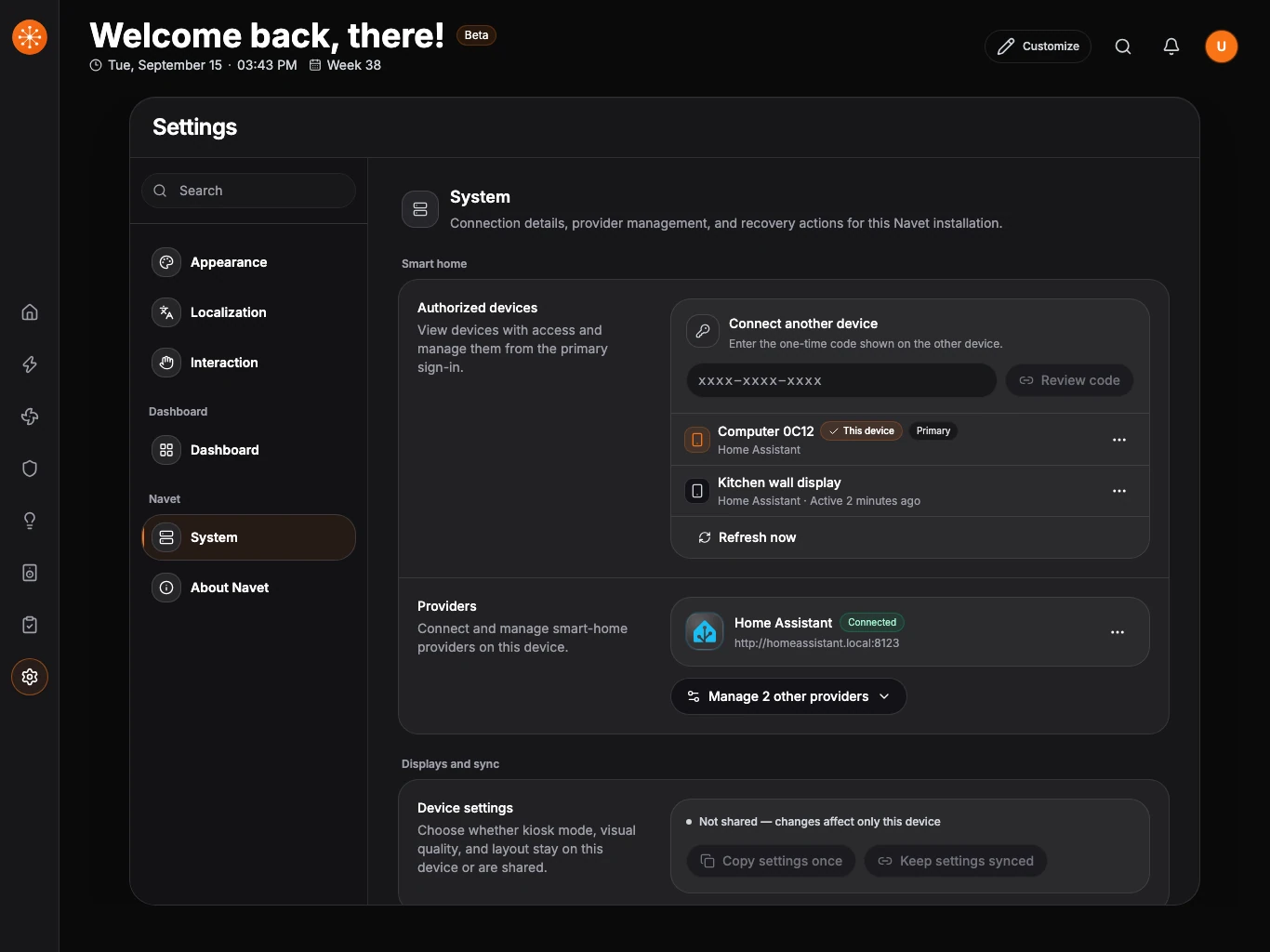
Use the controls under Device settings when two or more screens should match.
Connect another standalone screen
- Open Navet on the new screen and choose Connect with another device.
- Leave the one-time code visible on that screen.
- On a primary signed-in screen, open Settings → System → Authorized devices. Enter the Device connection code and choose Review code.
- Check the requesting screen name and providers, then choose Approve. The new screen connects automatically.
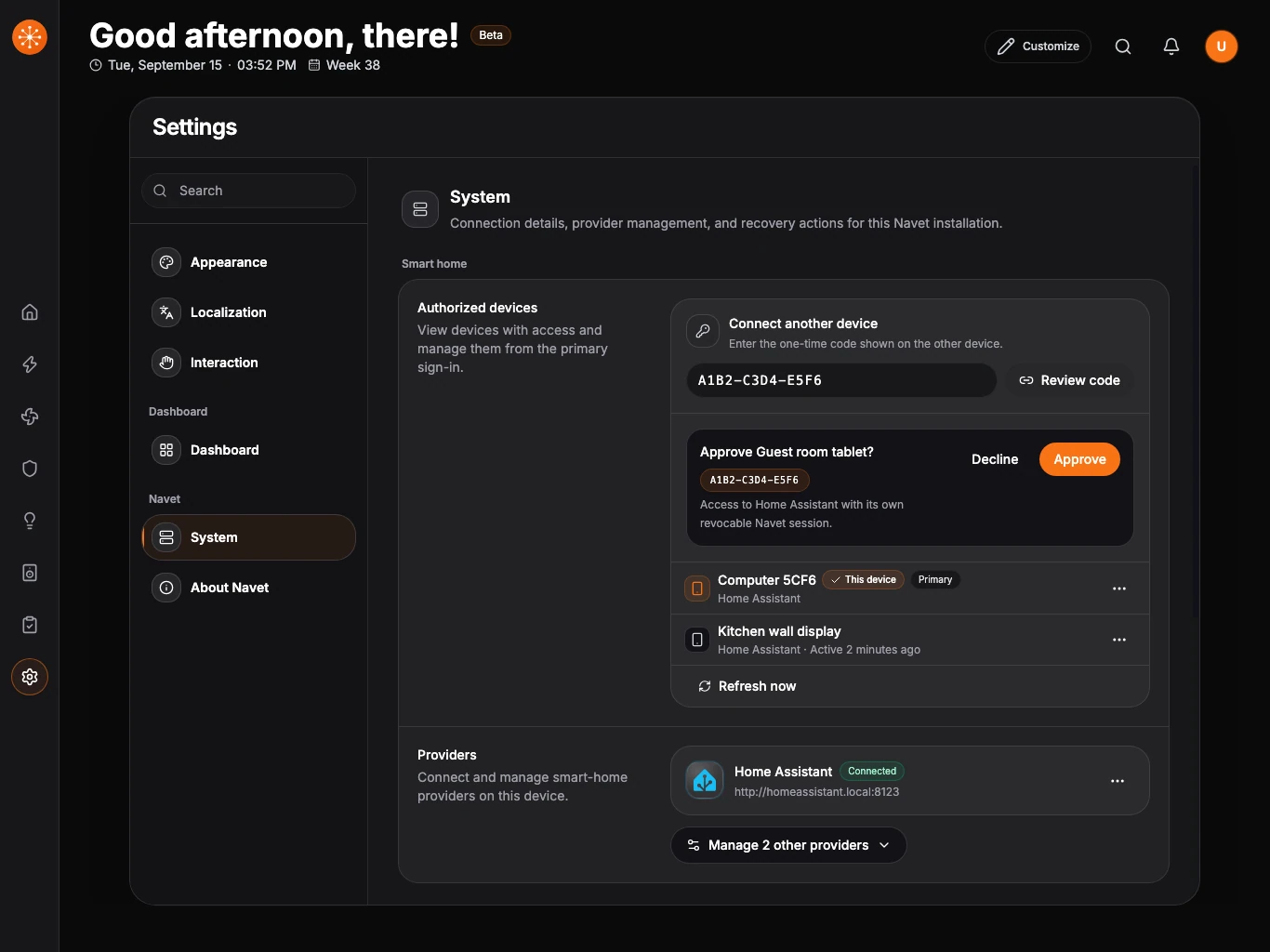
Only a primary sign-in can approve, rename, or remove authorized devices. An authorized screen can view the roster. To end an old screen’s access, choose Remove from the primary sign-in; the screen immediately loses access and can be connected again with a new code.
The Home Assistant custom panel and Ingress use their host authentication instead of this standalone device-approval flow.
Name an authorized screen
On a primary standalone sign-in, open Settings → System → Authorized devices, open a screen’s menu, and choose Rename device. Give important wall displays and browsers recognizable names. An authorized screen can view the roster but cannot rename devices.
The name identifies that screen in access management.
Copy settings once
Use this when another screen should start with the same kiosk, visual-quality, and layout settings but remain independent afterward.
- Configure the source screen the way you want.
- Open Settings → System → Device settings.
- Choose Copy settings once.
- Select the destination screens and choose Copy settings.
Later changes on either screen do not affect the other.
Keep display settings linked
Use a sync group for wall panels that should continue to share kiosk mode, visual quality, and layout.
- Under Device settings, choose Keep devices in sync.
- Enter a recognizable group name such as Wall displays.
- Select the devices that should share those settings.
- Save the group.
Choose the group later to add or remove devices. A removed device keeps its current settings and becomes independent.
Check device settings
Under Device settings, Not shared means this screen keeps its own kiosk, visual-quality, and layout choices. Synced with names the group sharing those settings. A failed copy or group change shows a retryable error.
Remove an old screen’s access
On a primary standalone sign-in, open Authorized devices, find the old screen, and choose Remove. It immediately loses access to Navet; removing it does not erase the dashboard collection.
If two devices edit at once
Follow Resolve a synchronization conflict. Do not repeatedly reload both screens while deciding which version should win.