


The Climate section collects your climate devices, summarizes current conditions, and shows only the controls reported by each device.
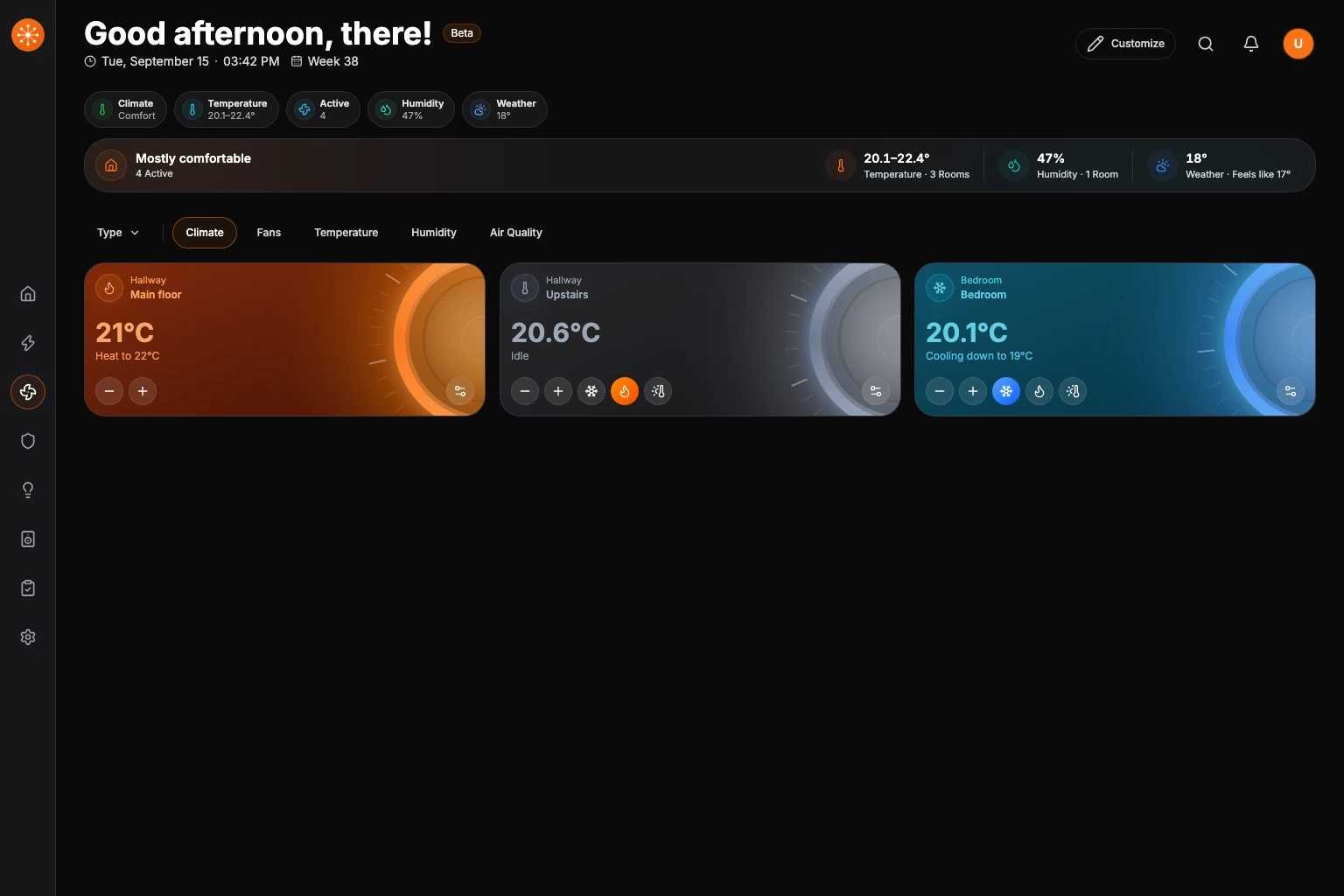
Read the overview
The summary strip puts exceptions first, followed by the current temperature range, active heating or cooling, humidity, air quality, and unavailable-device counts when those readings exist. Room control groups come next. Environmental sensor-only cards follow under Humidity, Air Quality, or Pressure instead of being mixed into the control grid.
Available temperature, humidity, air quality, and pressure sensors appear automatically in Climate, including humidity readings exposed by thermostats. Sensors you hide stay hidden.
Adjust a thermostat
- Open Climate.
- Find the thermostat card. The large number is the current temperature; the smaller line shows its status and target temperature.
- Use − or + on the card to adjust the target. The new target appears on the card as you change it.
- Select the thermostat for more controls, including available HVAC modes and presets.
In the thermostat dialog, open More actions to edit the room or card name. Select Controls for additional device controls, then Back to controls to return to the thermostat.
Humidity and water devices
Humidifiers and dehumidifiers can expose a target humidity. Water heaters can expose temperature, operation mode, or power when the provider supplies those capabilities.
Fans
Supported fans can expose power, percentage, direction, oscillation, or presets. A fan with only a power capability remains a simple control.
Select a fan card’s settings button to open its controls. Use the power button to turn the fan on or off. For fans with speed control, choose Low, Medium, or High, or drag the speed slider and release to apply the change. Selecting a speed also turns the fan on. Oscillation and direction controls appear when the device supports them.
Open the three-dot menu to Edit room, Edit card name, or Customize the card’s tint and icon. Select Back to controls to return, and Done when finished.
If a control is absent
Check the device’s supported controls and the integration matrix, because climate coverage varies by provider.